- Step 1: Click [Me] at the bottom of the home page to enter [Family Management].
- Step 2: Click [+] in [Family Management] to add a family member.
- Step 3: Fill in the name of the other party, click to generate the login QR code, click [Submit], download the APP and scan the code to log in. The account number, password and QR code of the family members will be sent to the mailbox of the main account, and you can scan the code or enter the account password to log in.

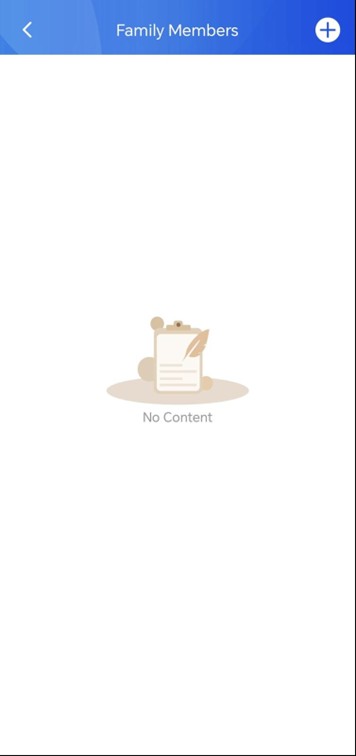
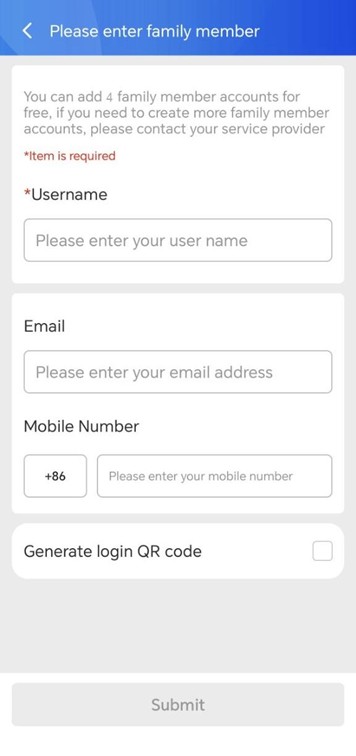
Note: You can add 4 family member accounts for free; for more, please contact your service provider.
- Monitor Device: In the [Home] interface, select the doorphone device you want to monitor, click the [Monitor] button to view the video screen.
- One-click Door Opening: In the [Home] interface, select the access control device you want to open, click the [Open Door] button to open the door.
- Calling Device: In the [Home] interface, select the device you want to call, click the [Make Call] button to call the device.

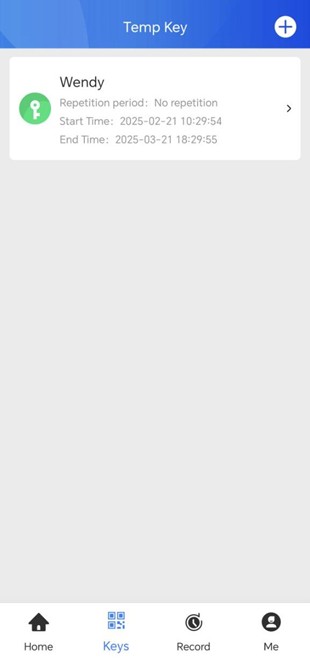
The temporary key is convenient for visitors. It is composed of a two-dimensional code (QR code), must be created manually, and you can set an expiration time for the password.
- Scan the code to open the door: press the key button on the access control machine, and hold the QR code a short distance in front of the camera to open the door.
- Create a temporary key: Click [keys]. The added temporary password will be displayed on this page. Click the [+] button in the upper right corner to add it.
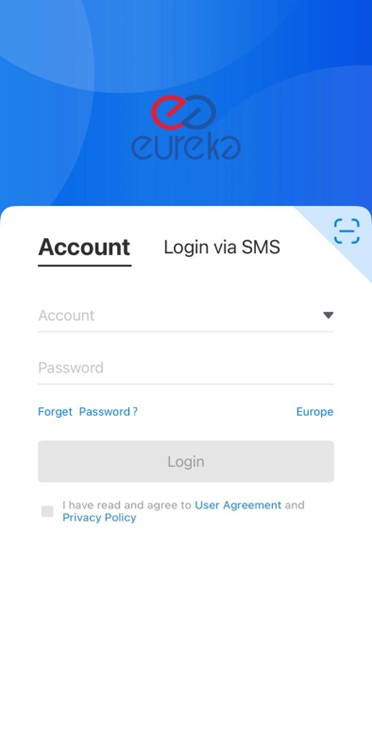
- On the login interface, click [Forgot Password].
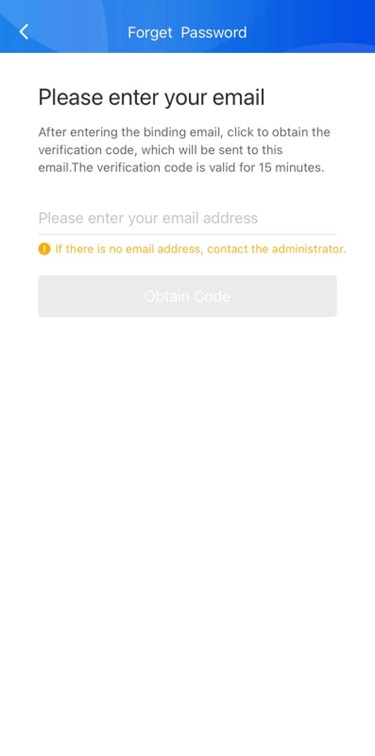
- Enter the email address used during registration.
- Click [Obtain verification code]. A code will be sent to your email.
- Enter the verification code within 15 minutes to reset your password.
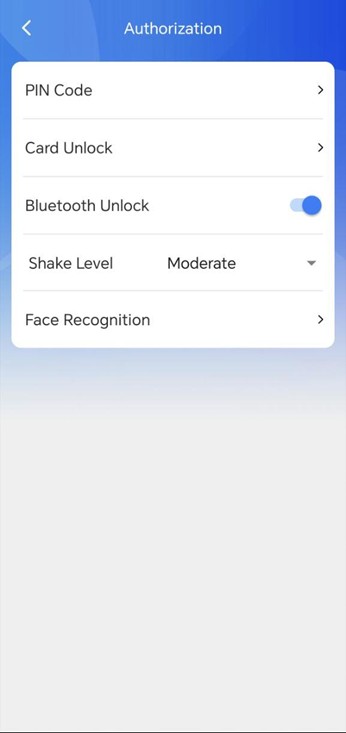
- Enable Bluetooth door unlocking: Click [Me], go to the [Authorization] page, and enable the Bluetooth door unlocking function.
- Shake to unlock: When near the door phone, shake your phone to unlock the door.
Note: Only AU-S1P supports Bluetooth door unlocking.